The ICS Feed event source allows you to import events from any calendar that supports the iCalendar (.ics) format. You can either upload an ICS file from your computer or, if you have the Google Calendar Pro add-on installed and activated, connect to a publicly accessible ICS feed URL.
This allows you to display events from services such as Google Calendar, Apple Calendar, Microsoft Outlook, Microsoft 365, Yahoo Calendar, and other applications that support the iCalendar standard.
Steps to Import the ICS Feed
1. Create a New Calendar
In your WordPress dashboard, navigate to Calendars > Add New Calendar.
2. Select the ICS Feed Event Source
Under Calendar Settings, set Event Source to ICS Feed.
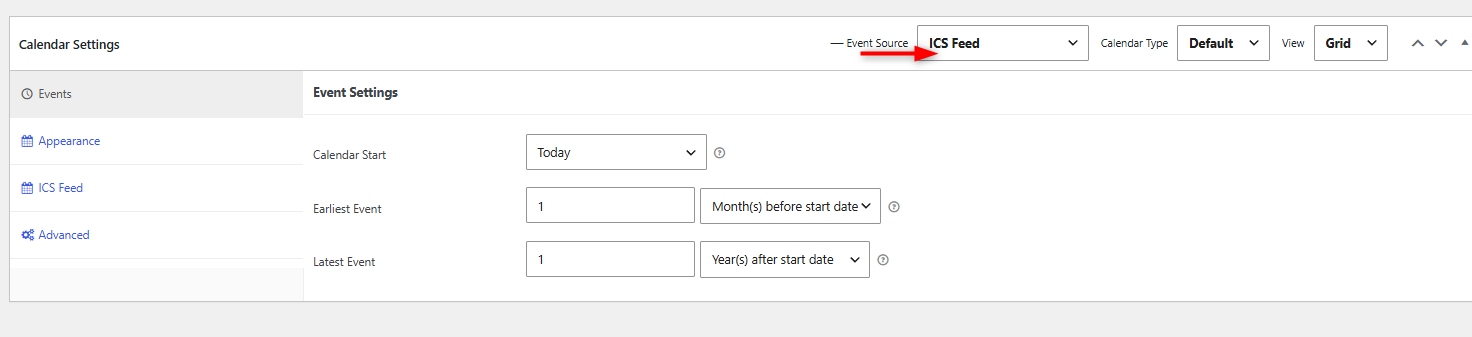
A new ICS Feed settings tab will become available.
3. Open the ICS Feed Settings
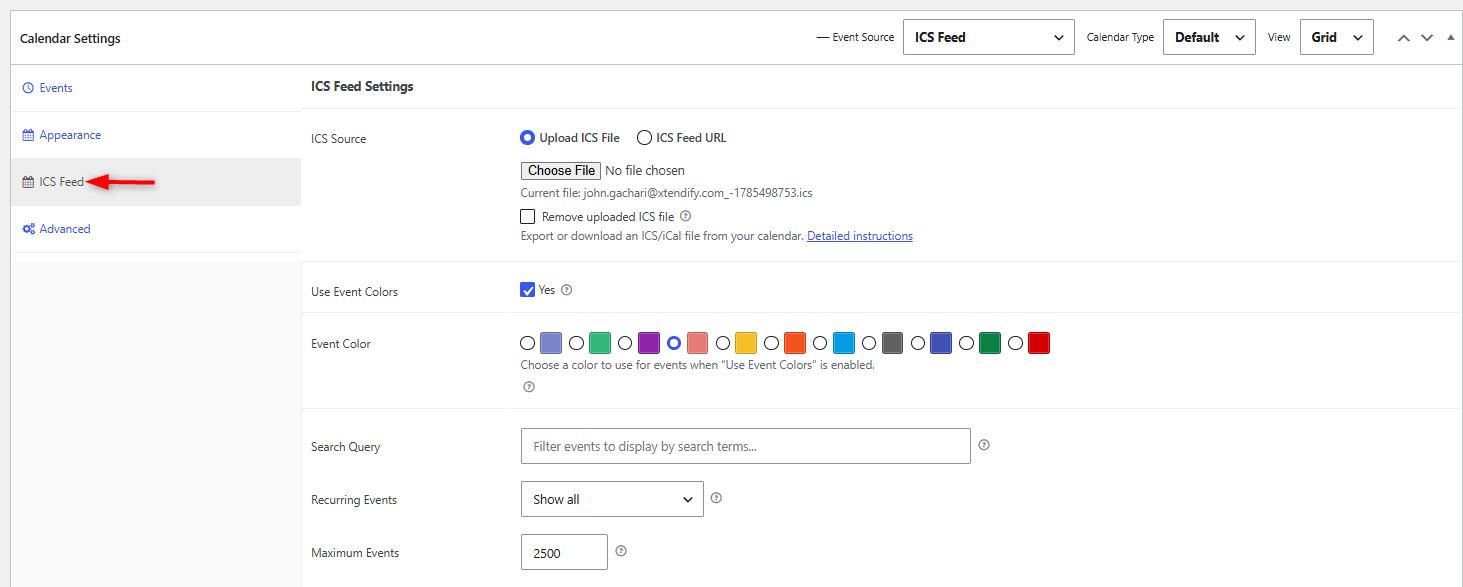
Click the ICS Feed tab to configure how events will be imported.
4. Choose an ICS Source
Under ICS Source, choose one of the following options:
- Upload ICS File
- ICS Feed URL (available only when the Google Calendar Pro add-on is installed and activated)
5. Configure the Selected ICS Source
Upload ICS File
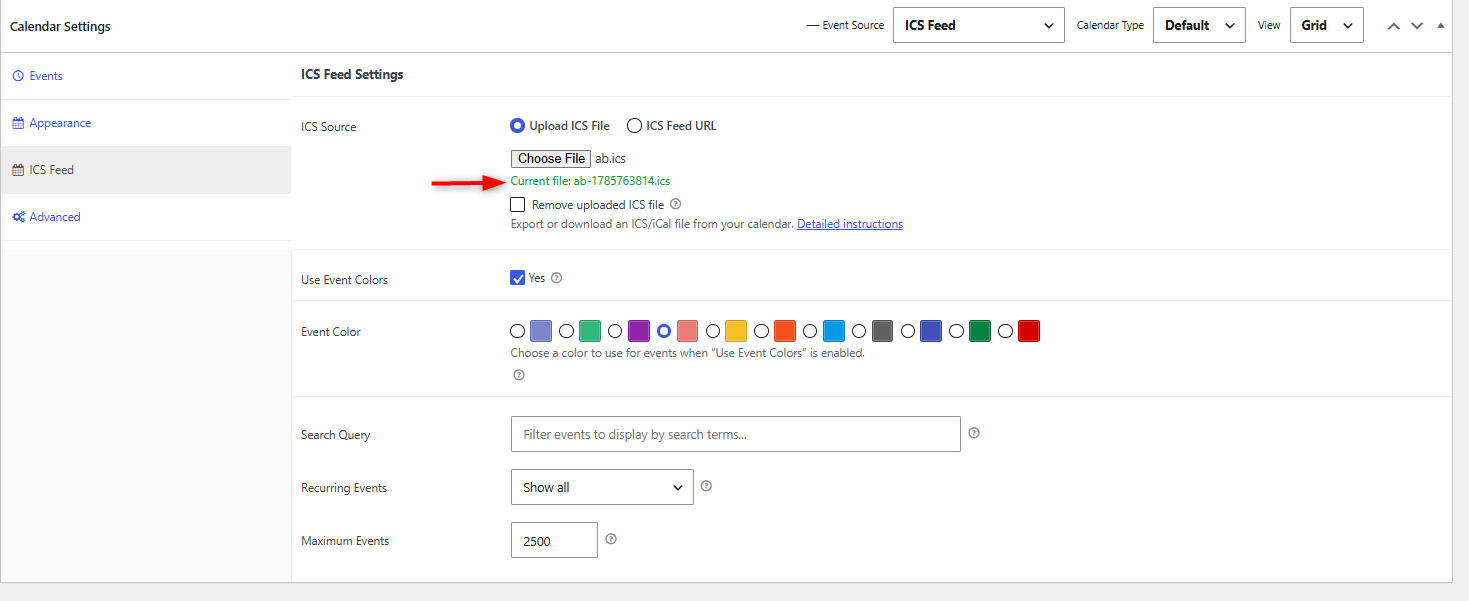
Choose Upload ICS File if you want to import events from an .ics file stored on your computer.
- Click Choose File.
- Select the
.icsfile. - Once uploaded, the filename will be displayed beneath the upload field.
Use this option when:
- You have exported an ICS file from another calendar application.
- You only need to import the events once.
- Automatic synchronization is not required.
The “Remove uploaded ICS file” is used to delete a previously imported .ics file from a calendar. It takes effect upon clicking the “update” button on the calendar edit screen.
ICS Feed URL
(available only when the Google Calendar Pro add-on is installed and activated)
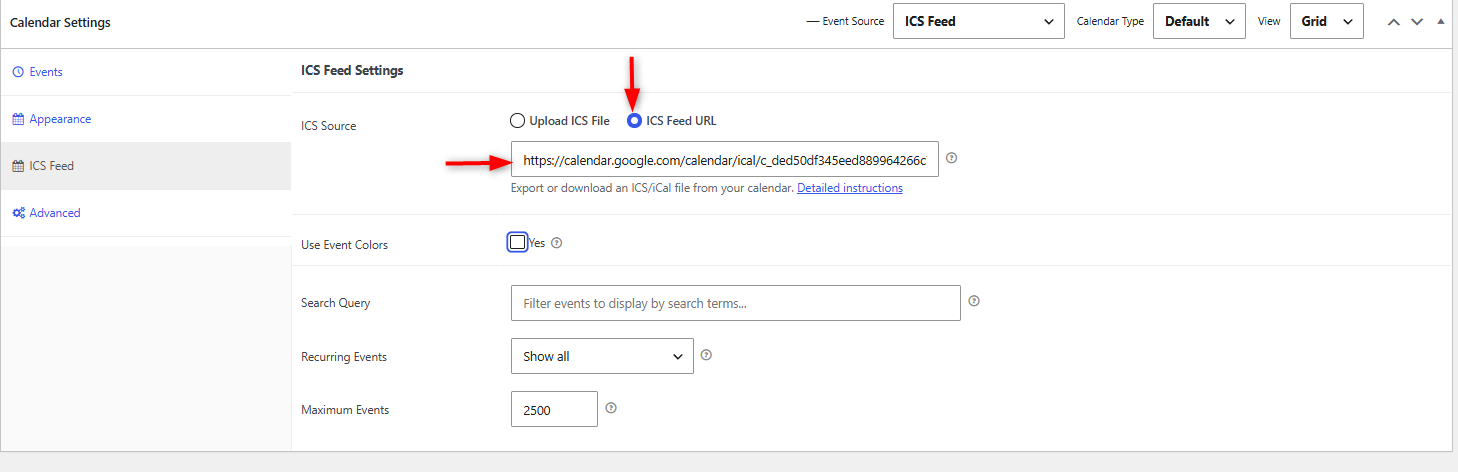
Choose ICS Feed URL if you want your calendar to remain synchronized with an external calendar.
- Paste the publicly accessible ICS/iCalendar URL into the ICS Feed URL field.
- Verify that the URL is correct.
Use this option when:
- You want your website calendar to stay synchronized with another calendar.
- Your calendar provider offers a public or secret ICS subscription link.
- Events are updated regularly in the source calendar.
After the feed is connected, Simple Calendar will automatically retrieve new or updated events whenever the feed refreshes.
Note: The ICS feed must be publicly accessible. URLs that require users to sign in cannot be imported. If you’re using a private calendar, use its public or secret iCal/ICS subscription link instead.
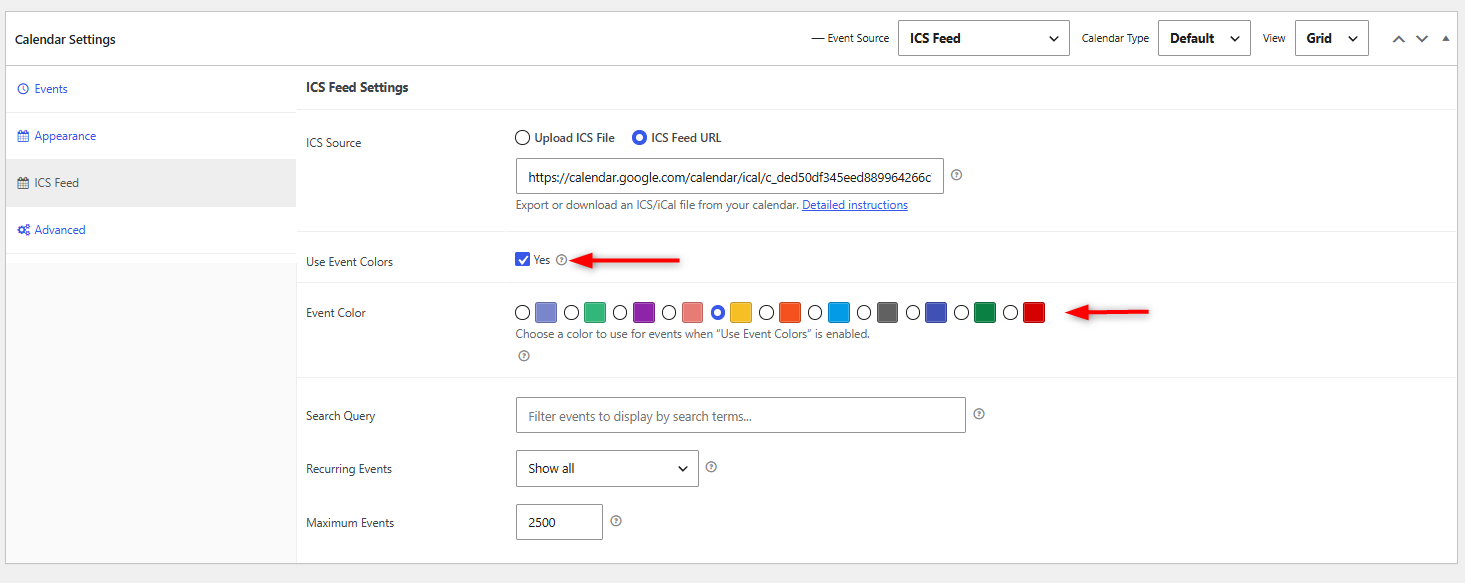
6. Enable Event Colors(Optional)
(available only when the Google Calendar Pro add-on is installed and activated)
Enable the option “Use Event Colors” and on the “Event Color” field rendered beneath it, select an Event color to be used by events within the calendar.
7. Publish the Calendar
Click Publish to save your changes.
Your events will now be imported and displayed in your calendar.