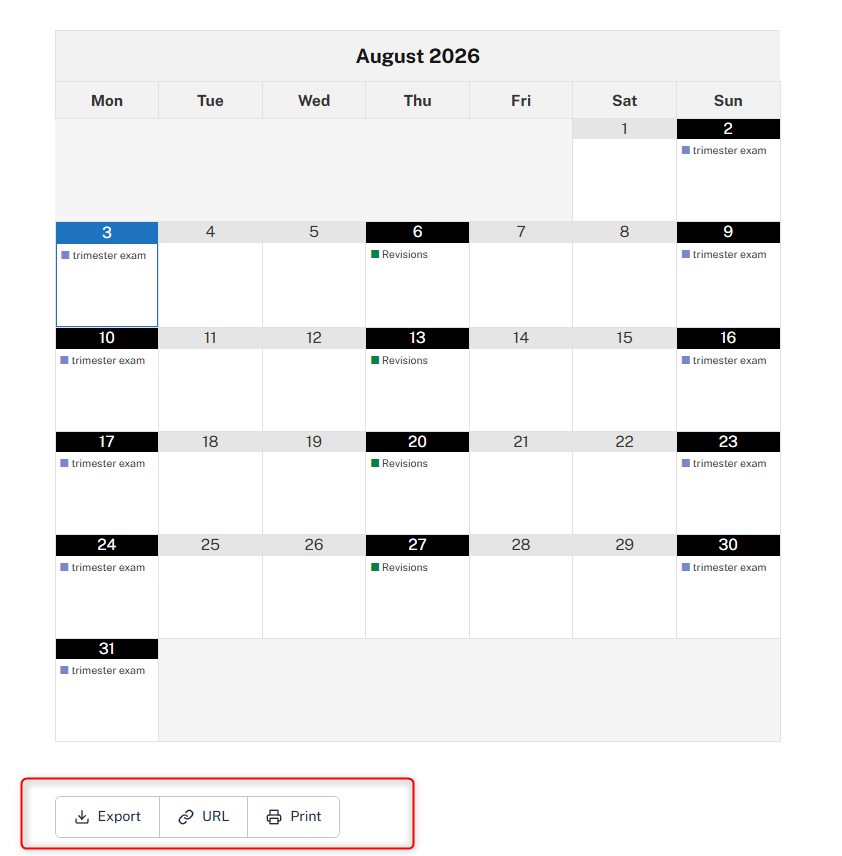
Simple Calendar allows visitors to export calendars directly from the frontend. These options can be enabled from the Appearance settings of each calendar.
You can display buttons that allow users to:
- Download the calendar as an ICS file.
- Subscribe to the calendar using its ICS feed URL.
- Print the calendar.
How To Enable Exporting of Calendars
1. Open the Calendar
In your WordPress dashboard, navigate to the Calendars and select to edit an existing calendar.
2. Access the Appearance Settings
Under Calendar Settings, click the Appearance tab.
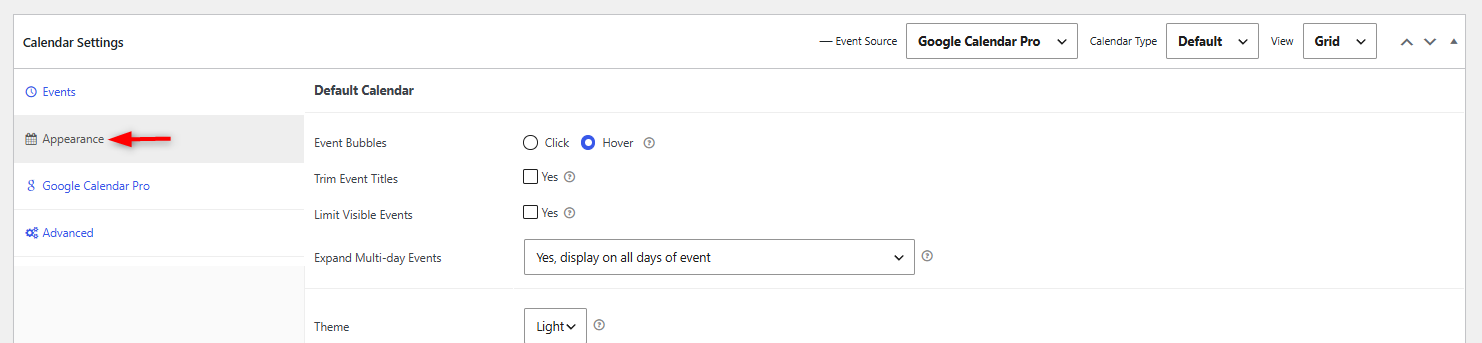
3. Locate the Export Calendar Settings
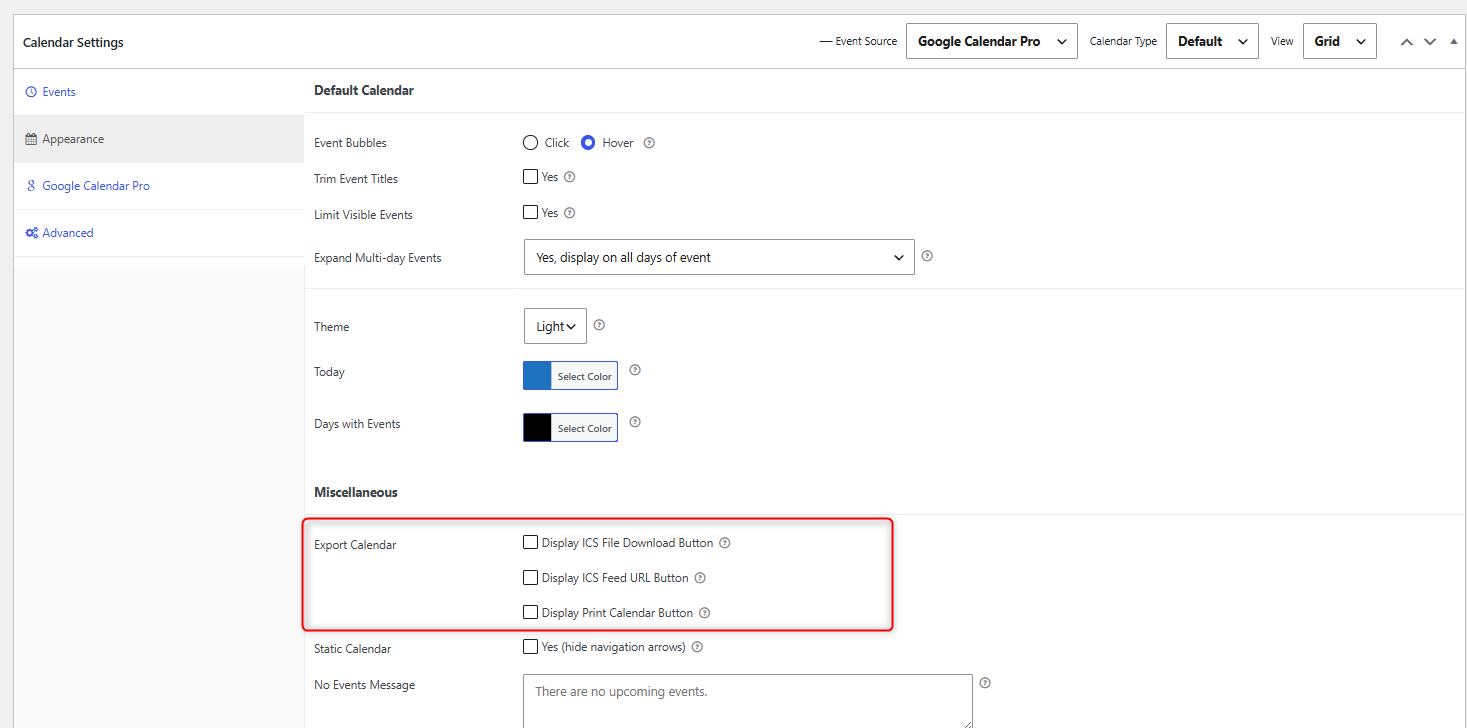
Within the Appearance tab, scroll down to the Miscellaneous section and locate the Export Calendar options.
4. Enable the Export Options
Choose the export features you want to display on the frontend.
Display ICS File Download Button
– Enable this option to add a button that allows visitors to download your calendar as an .ics file.
– The downloaded file can be imported into calendar applications that support the iCalendar format such as Google Calendar, Apple Calendar, and Microsoft Outlook amongst many others.
Display ICS Feed URL Button
-Enable this option to display a button that provides your calendar’s public ICS feed URL.
Visitors can then use this URL to subscribe to your calendar in supported calendar applications. Unlike downloading an ICS file, subscribing to the feed allows their calendar to stay synchronized with any future updates you make.
Display Print Calendar Button
-Enable Display Print Calendar Button to display a Print Calendar button on the frontend.
Visitors can use this button to print the currently displayed calendar, making it easy to create a physical copy of upcoming events or save them as a PDF using their browser’s print options.
5. Save Your Changes
Click Update to save the calendar.
The selected export buttons will now appear on the frontend wherever the calendar is displayed, as seen in the screenshot below: